
Free Purchase Order Template - Word, Excel & PDF + Sample
Download the purchase order template
About this page
Rather fill it in online? Create the purchase order in your browser and download a finished PDF, free and with no signup.
Free for personal and commercial use. No signup, no email, no attribution required.
Files generated on from the same template configuration described on this page, and regenerated whenever the layout is revised — so the file you download always matches the field list below.
Sample PO format (filled example)
Here is the same layout filled in for a fictional office-supplies order. Every label comes from the template itself; the businesses and figures are invented, and the tax line is left at 0 because the right rate depends on what you buy and where.
Sample — fictional businesses and figures
PURCHASE ORDER
Buyer-issued order to a vendor — an offer to purchase, not an invoice.
From (buyer)
Sample Buyer Co.
10 Example Avenue, Springfield
[email protected]
To (vendor / supplier)
Example Office Supply Ltd
22 Sample Road, Riverton
[email protected]
Ship to / delivery terms
Goods-in, 10 Example Avenue, Springfield. Weekdays only; partial deliveries accepted.
| Description | Qty | Unit price | Amount |
|---|---|---|---|
| A4 copy paper, box of 5 reams | 20 | 24.50 | 490.00 |
| Black toner cartridge, model X100 | 6 | 58.00 | 348.00 |
| Mesh desk organiser | 15 | 12.40 | 186.00 |
Notes
Confirm acceptance in writing within 5 business days. Quote PO-2026-031 on the invoice, packing slip and all correspondence.
- Subtotal
- 1,024.00
- Tax (if applicable)
- 0.00
- PO TOTAL
- 1,024.00
The vendor should confirm acceptance in writing and quote this PO number on the invoice — that match is what AP teams check first.
These templates are a general-purpose business document, not legal, accounting or tax advice. When a purchase order becomes a binding contract, and what has to appear on it, depends on your jurisdiction and on the terms agreed between the parties — check the requirements that apply to you, or ask a qualified professional, before relying on one.
What's inside this template
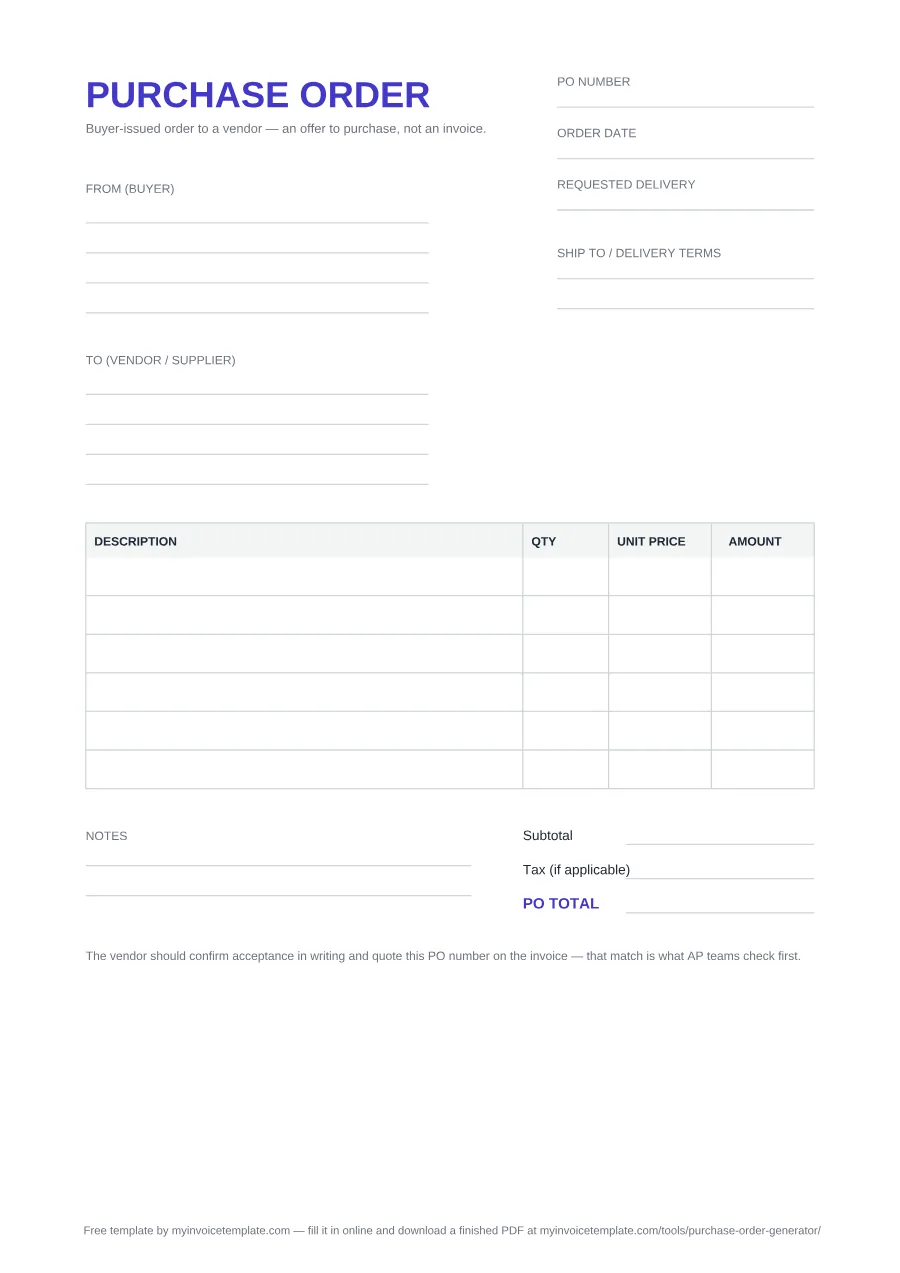
The document is headed PURCHASE ORDER on A4, with the line "Buyer-issued order to a vendor — an offer to purchase, not an invoice" printed under the title. It lays out in this order:
- Three reference fields at the top — PO number, Order date and Requested delivery. The PO number is the one the vendor will be asked to quote back on the invoice, so give it a number you can look up. Our PO number generator shows how to set up a numbering scheme.
- Two party blocks — From (buyer) and To (vendor / supplier), four blank lines each for name, address and contact details. The buyer sits in the From block, because on this document the buyer is the one issuing it.
- A Ship to / delivery terms field — for the delivery address when it is not the billing address, plus anything the vendor needs to know about how and when to deliver.
- An item table with four columns — DESCRIPTION, QTY, UNIT PRICE and AMOUNT. Blank rows come ready to fill: six in the PDF, seven in the Word file and ten formula-driven rows in Excel.
- Three totals lines — Subtotal, Tax (if applicable) and PO TOTAL, right-aligned under the table. No tax rate is pre-filled.
- A Notes area — two blank lines for the conditions that do not fit elsewhere, such as partial-delivery rules or your standard purchase terms.
- A printed reminder at the bottom — "The vendor should confirm acceptance in writing and quote this PO number on the invoice — that match is what AP teams check first."
What the Excel version calculates
In the XLSX you type into the outlined cells and the rest is formula-driven: Amount is quantity × unit price on each of the ten item rows, Subtotal is the sum of the amount column, Tax (if applicable) is that subtotal times the rate you enter in the Tax rate % (edit) cell (rounded to two decimals), and PO TOTAL is the two added together. The rate cell arrives at 0 — no tax rate is assumed on your behalf.
About the files themselves
All three files are built from one configuration and regenerated with every revision of the template. The PDF and Word files carry every field listed above; the Excel version focuses on the calculating table — meta fields, buyer and vendor blocks, the item grid and the formula totals — so the delivery-terms line lives in the PDF and Word layouts. The only branding is a single plain-text credit line for this site — a footer paragraph in the PDF and Word file, and a note at the top of the sheet in Excel. There is no watermark laid across the page, no logo and no locked region. In Word and Excel you can delete that line like any other content; in the PDF it is fixed, so use the editable formats if you want it gone.
Which format should you pick
- PDF — when you are printing the order, completing it by hand, or sending a layout that must not shift. It opens anywhere and nobody can nudge the fields out of place.
- Word (DOCX) — when you want this to become your purchase order. Add a logo, paste in your standard purchase terms, save it as your house version and reuse it. Opens in Word, Google Docs and LibreOffice Writer.
- Excel (XLSX) — when the order runs to several lines, or there is tax to add. Type quantity and unit price; the sheet handles the arithmetic, which matters on a document a vendor will price their invoice against.
From purchase order to invoice
A purchase order and the invoice that follows it are two halves of the same transaction. The buyer raises the PO first: this is what we want, at this price, delivered here by then. It is an offer to purchase, not a bill — nothing is owed at that point. The vendor confirms acceptance, supplies the goods or services, and only then issues the invoice that asks for payment.
What holds the pair together is the PO number. The template prints the expectation on the document itself: the vendor should confirm acceptance in writing and quote the PO number on the invoice. Getting that right is largely mechanical, and worth being fussy about:
- Quote the PO number exactly. Same characters, same separators — an accounts-payable system matching on the string will not forgive a stray dash.
- Invoice the entity named on the PO. If the order came from a specific company or department, the invoice should be addressed to that same entity.
- Keep the lines recognisable. Descriptions, quantities and unit prices that line up with the ordered lines are what let the invoice be checked against the order without a phone call.
- Flag agreed changes before invoicing. If quantities or prices moved after the order went out, get the change in writing rather than letting the invoice be the first place it appears.
On the vendor's side, the invoice that answers a PO needs somewhere to put that number. The blank corporate invoice template carries a PO number field in its top reference block for exactly this.
For how the buyer's side actually checks it — matching the purchase order, the goods receipt and the invoice before payment is released — read the Guide to B2B Invoicing.