
Free Contractor & Construction Invoice Generator
Blank contractor invoice template: PDF · Word (DOCX)
About the contractor invoice editor above
- Your business and client details with line items that fit labor and materials
- Automatic subtotal, tax and total calculation
- A construction-style template with live preview and free PDF download
Free to use — no signup, no account. Unmetered for normal use, with an anti-abuse cap of 20 generated PDFs per device per day. Each PDF carries a one-line credit for this site, on by default — one free checkbox in the settings turns it off. Your draft autosaves in your own browser, and when you download, its content is sent to us over an encrypted HTTPS connection to create the PDF.
About this page
- 📍 Job site: a Job Site Address field that prints next to Bill To.
- 🧱 Labor vs materials: mark each line Material or Labor; tax can apply to materials only.
- ⚡ Staged billing: a Payment Schedule / Milestones box, and Deposit Paid turns the total into Balance Due.
Disclaimer: This tool is a document generator, not a tax advisor. Please verify your local tax rates for capital improvements vs repairs.
Construction invoice example
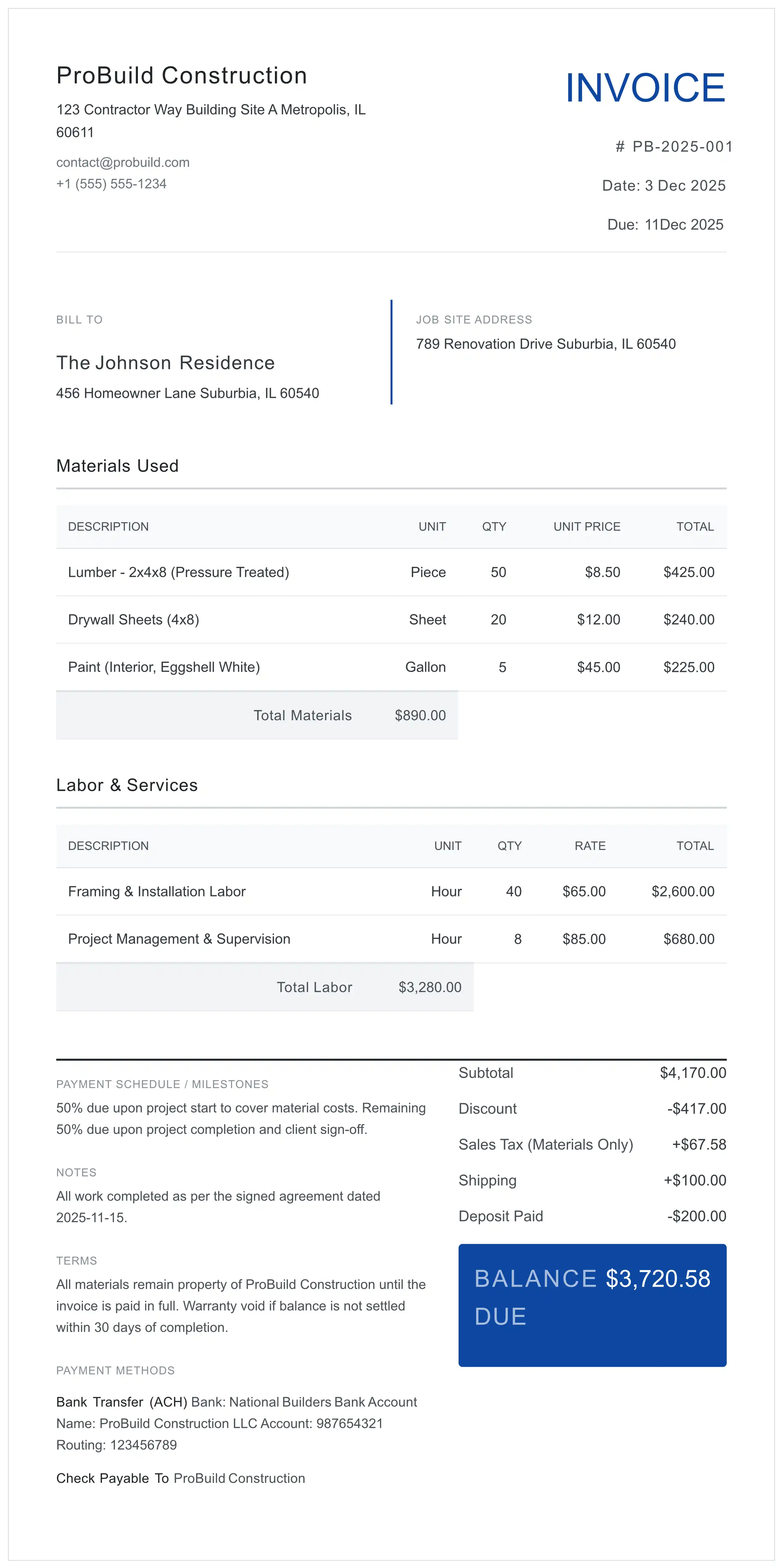
How a finished invoice from this generator is laid out. Names and figures are placeholders chosen to make the arithmetic easy to follow; they are not prices. No tax is charged in this example because the rate depends on where the job is; the PDF prints a tax line only when the tax comes to more than zero.
Your Company Name
100 Example Street, Anytown
INVOICE
# EX-001 · Date: [date] · Due: [date]
Bill To
Client Name
200 Billing Avenue, Anytown
Job Site Address
300 Job Site Road, Anytown
Materials Used
| Description | Unit | Qty | Unit Price | Total |
|---|---|---|---|---|
| Framing lumber | Piece | 20 | 10.00 | 200.00 |
| Drywall sheets | Sheet | 10 | 15.00 | 150.00 |
| Total Materials | 350.00 | |||
Labor & Services
| Description | Unit | Qty | Rate | Total |
|---|---|---|---|---|
| Framing labor | Hour | 10 | 50.00 | 500.00 |
| Change Order #1: extra doorway (signed [date]) | Job | 1 | 150.00 | 150.00 |
| Total Labor | 650.00 | |||
Payment Schedule / Milestones
Contract C-000. Stage 1 of 2 (framing) complete; stage 2 due at final walkthrough.
- Subtotal
- 1,000.00
- Deposit Paid
- −300.00
- Balance Due
- 700.00
Arithmetic: 350.00 + 650.00 = 1,000.00; 1,000.00 − 300.00 deposit = 700.00. With a tax rate r applied to materials only, a "Sales Tax (Materials Only)" line of 350.00 × r would appear under the subtotal, and the balance would be 700.00 + 350.00 × r.
4 Costly Mistakes to Avoid on Contractor Invoices
Four errors that make a contractor invoice harder for the client to check and approve, and how to avoid them in this editor.
Vague Line Items
Writing 'Bathroom Renovation' is a red flag. Instead, list 'Demolition', 'Rough Plumbing', and 'Tile Installation' separately to justify costs.
No Job Site or Contract Reference
An invoice that names only the billing address makes the client guess which job it is for. Fill in the Job Site Address and put the contract or PO number in the Notes, so the bill matches the agreement it comes from.
Ignoring Retainage
The editor has no retainage field. If your contract withholds retainage, state the amount withheld in the Notes or the Payment Schedule / Milestones box. The price field does accept a negative number, but such a line prints inside the Materials or Labor block and, if tax applies to it, lowers the taxed amount too, so check that against your contract before you use it.
Taxing the Wrong Lines
If only materials are taxable where you work, taxing labor too overcharges the client. Mark each line Material or Labor and set the tax to 'Apply to Materials Only'; if both are taxable, choose 'Apply to All Items'.
Tailored for Every Trade
Whether you pull wire or pour concrete, here is how to use this tool for your trade. Prefer a blank to fill in by hand? There are free electrician and plumbing invoice templates with separate labor and materials blocks, and a general contractor invoice template.
- Plumbers & HVAC: Put equipment make, model and serial number in the line description, so the client can match the invoice to the unit that was installed.
- Electricians: Keep rough-in materials, fixtures and labor on separate lines, and mark each line Material or Labor so the PDF prints them in separate blocks.
- Roofers: Bill materials and labor per square or per job as your contract states, and list tear-off, disposal and decking repairs as their own lines.
✅ Pre-Send Checklist
- Did you include the Job Site Address?
- Is the contract or PO number in the Notes?
- Is every line marked Material or Labor?
- Is any deposit received entered in Deposit Paid?
- Did you set the due date?
General contractor and builder invoices: what to include
A general contractor's or builder's invoice has to let the owner (or the lender, or the GC above you) match every charge to the contract. Include:
- Who pays and where the work is. Bill To is the payer; the Job Site Address is the property. On a subcontract, the payer is usually the general contractor.
- The contract or PO reference. The contractor editor has no PO field, so put the contract or PO number in the Notes or the Payment Schedule / Milestones box.
- Labor and materials as separate lines. Mark each line Material or Labor; the PDF prints them in two blocks, each with its own total.
- Change orders as their own lines, each naming the signed change order it comes from, never folded into the original contract lines.
- Deposits received. Enter them in Deposit Paid and the PDF shows the Balance Due.
- Progress on a staged job. State the stage and the percentage complete (for example "Stage 2 of 4, 50% complete") in the Payment Schedule / Milestones box, and any retainage withheld, as the contract sets it.
Paying a contractor's invoice rather than sending one? The validation checklist for owners, GCs and AP teams in the contractor invoicing guide walks through what to check.
How to invoice labor and materials
- Add a line for each item or task and set its Type to Material or Labor. Materials usually read as quantity × unit price; labor as hours × hourly rate.
- Set the tax. The editor starts with a "Sales Tax (Materials Only)" line at 0%. Enter the rate that applies where the job is, then choose Apply to Materials Only if only materials are taxed, or Apply to All Items if labor is taxed too. Your state tax agency's guidance for contractors is the place to check which applies.
- Enter any deposit already received in Deposit Paid. The PDF then lists it and labels the last line "Balance Due" instead of "Total Due".
How the totals work (M = total materials, L = total labor, r = your tax rate, D = deposit paid):
Subtotal = M + L · Tax with "Apply to Materials Only" = M × r · Balance Due = M + L + (M × r) − D
Want to price the job first? Start with the Estimate Generator, then bill the accepted work here. How labor and materials are taxed state by state is covered in the contractor invoicing guide.