
Free Quotation / Estimate Template - PDF, Word & Excel
Download the quote or estimate template
Quote / estimate — PDF
Print-ready blank: one A4 page with six line rows.
Download PDF DOCXQuote / estimate — Word
Fully editable in Word, Google Docs or LibreOffice.
Download DOCX XLSXQuote / estimate — Excel
Totals, tax and grand total compute automatically.
Download XLSX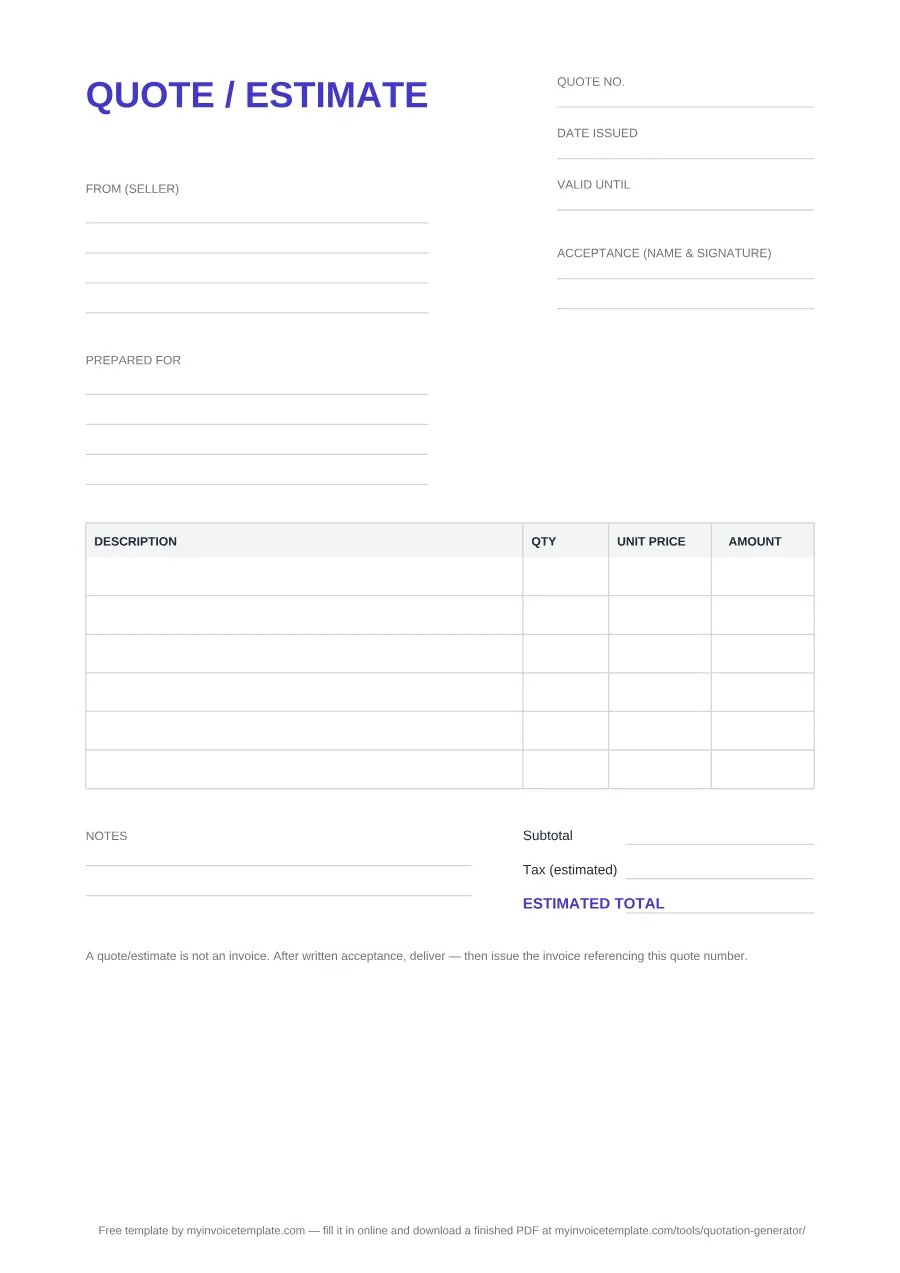
Estimate quotation format: every field explained
| Field | Where it sits (PDF layout) | What to write |
|---|---|---|
| QUOTE / ESTIMATE | Heading, top left | Leave it, or change it to QUOTATION or ESTIMATE in the Word or Excel file so it says exactly what you are sending. |
| Quote no. | Top right, first of three document fields | A unique, sequential reference (for example Q-2026-014). The customer quotes it on their purchase order and you repeat it on the invoice. |
| Date issued | Top right, under Quote no. | The day you send the quotation. |
| Valid until | Top right, under Date issued | The last day the customer can accept at these prices. |
| From (seller) | Left, first party block (four lines) | Your trading name, address, contact details and any tax or registration number your customers expect. |
| Prepared for | Left, second party block (four lines) | The customer: exact business name, contact person or department, address. |
| Acceptance (name & signature) | Right, beside the party blocks (PDF and Word only) | Left blank for the customer to print their name and sign when they accept. |
| QTY / UNIT PRICE / AMOUNT | Line-item table (6 rows in the PDF, 7 in Word, 10 in Excel) | One line per item: a specific description, the quantity, the price per unit and the line amount (quantity × unit price). |
| Subtotal | Totals block, right, under the table | The sum of the line amounts. |
| Tax (estimated) | Totals block, second line | The tax you expect to charge, at the rate that applies to you. No rate is pre-filled: the PDF and Word line is blank and the Excel rate cell starts at 0. |
| ESTIMATED TOTAL | Totals block, emphasized last line | Subtotal plus tax: the figure the customer is agreeing to. |
| Notes | Two ruled lines, left, under the table (PDF and Word only) | What the price excludes, lead time, a deposit condition, or the assumptions behind an estimate. |
| Bottom note | Printed at the foot of every copy | "A quote/estimate is not an invoice. After written acceptance, deliver — then issue the invoice referencing this quote number." |
About this page
Free for personal and commercial use. No signup, no email, no attribution required.
All three files were generated on from one shared layout definition, and they are regenerated together whenever the template is revised — so the PDF, the Word file and the spreadsheet never drift apart, and what is described below is what you get.
Every format is built from the same field list, so switching formats never means re-learning the document. Here is each field in the order it appears, where it sits, and what to write in it.
One difference worth knowing: the Excel version keeps the header, the three document fields, both party blocks, the four-column table, the three totals lines and the closing reminder, but leaves out the acceptance line and the ruled Notes lines — the sheet is organized around its live formulas. If you need a signature block on the page, take the PDF or the Word file.
Wording for the Notes area (exclusions, validity, deposits) is collected in our quote disclaimer template. If your customer has asked for a proforma invoice rather than a quotation, use the separate proforma invoice template.
What the template looks like filled in
The same layout, completed for a fictional design studio. The arithmetic adds up line by line, and the tax line is left at 0 because the right rate depends on where you and your customer are.
Sample — fictional business and figures
QUOTE / ESTIMATE
From (seller)
Example Design Studio
12 Sample Street, Springfield
[email protected]
Prepared for
Sample Client Ltd
Attn: Purchasing
45 Example Road, Riverton
Acceptance (name & signature)
Signed by the customer on acceptance
| Description | Qty | Unit price | Amount |
|---|---|---|---|
| Logo and brand identity design | 1 | 1,200.00 | 1,200.00 |
| Website design, 5 pages | 5 | 350.00 | 1,750.00 |
| Copywriting (hours) | 8 | 60.00 | 480.00 |
Notes
Price covers the scope listed above. Hosting and domain registration are excluded. Work starts within 10 business days of written acceptance.
- Subtotal
- 3,430.00
- Tax (estimated)
- 0.00
- ESTIMATED TOTAL
- 3,430.00
Tax is shown at 0 in this sample: enter the rate that applies to you.
A quote/estimate is not an invoice. After written acceptance, deliver — then issue the invoice referencing this quote number.
Walk through this example field by field → Our guide to writing a business quotation explains each numbered field and checks the arithmetic.
Estimate template (US)
If you are in the United States you probably call this an estimate; in the UK and much of the Commonwealth the same document is a quotation. There is no second file to download — the heading printed on every copy already reads QUOTE / ESTIMATE, the totals block is labeled Tax (estimated) and ESTIMATED TOTAL, and the fields an estimate needs (a number, an issue date, a Valid until date, itemized lines, a place to sign) are the ones on the page.
Want it to read purely as an estimate? The Word and Excel copies are ordinary editable documents: change the heading to ESTIMATE, retitle Quote no. as Estimate no., and the rest of the layout carries over untouched. The PDF is a flat print-ready page, so edit the Word or Excel copy and export from there if you want branded wording.
Trade habit worth keeping: an estimate is an approximation, so put what it assumes in the Notes area — the scope it covers, what it excludes, and what would change the figure. That single paragraph is what you point back to if the final bill lands above the number you first wrote down.
Which format should you pick
- PDF — when you need it on paper or want the page to look identical everywhere. Nothing to install, nothing to break; you fill it in by hand, or hand it over for a signature on the acceptance line.
- Word (DOCX) — when the wording matters more than the math. Rename labels, add your logo and terms, keep a reusable copy in Word, Google Docs or LibreOffice. You calculate the totals yourself.
- Excel (XLSX) — when there is more than one line, or a tax rate involved. Type quantities and unit prices; the amounts, subtotal, tax and estimated total recalculate on their own, and stay right when a customer asks you to drop an item.
The small footer credit in the Word and Excel files is editable text — delete it if you want to, no attribution is required. Or skip files altogether and fill the quote in online for a finished PDF.
When to use a quote / estimate
A quote or estimate goes out before any work starts. It states what you will supply, at what price, and for how long that price holds, so the customer can compare offers, get an internal approval, or set aside a budget. It is not a request for payment, and it is not revenue in your books.
The Valid until field is on the template rather than optional for a reason. An offer with no expiry date is a standing commitment to today’s prices — and quotes have a habit of resurfacing months later, after your own costs have moved.
When the customer says yes, get it in writing on the acceptance line, deliver, then invoice the same items with the quote number on the invoice. That is the whole workflow the footnote on every copy describes.
Read the full guide: How to Write a Business Quotation → Goes deeper on what to include, formal vs informal quotes, quotations for services, contracts and goods, acceptance and e-signatures, and a step-by-step walkthrough.